

The modern web experience is filled with repetitive actions—clicking through forms, refreshing dashboards, scrolling endlessly, or testing web applications. In 2026, the Microsoft Edge Auto Clicker became one of the most popular Microsoft Edge extensions for automating these tasks.
Whether you’re a gamer looking to automate clicks in browser-based games, a professional filling out long forms, or a content creator managing repetitive workflows, the Edge auto clicker offers a streamlined solution.
This guide explores everything you need to know about the auto clicker for Microsoft Edge, including setup, features, use cases, risks, and best practices.
Table of Contents
What is the Microsoft Edge Auto Clicker?
The Microsoft Edge Auto Clicker is a browser extension available through the official Microsoft Edge Add-ons store. It automates mouse clicks, scrolling, and even form-filling actions directly within the Edge browser.
Key features include:
- Smart Auto Clicking: Single-point clicks at precise intervals (down to 1ms).
- Multi-target sequences: Automate complex workflows with multiple click points.
- Scrolling automation: Auto-scroll through feeds, dashboards, or long documents.
- Form automation: Fill repetitive fields instantly.
- Screen capture tools: Take screenshots or record browser activity.
Why Use an Edge Auto Clicker?
The auto clicker Edge extension saves time and reduces errors in repetitive tasks. Here are the main benefits:
- Productivity boost: Automates form submissions, testing, and dashboard refreshes.
- Gaming efficiency: Automates repetitive clicks in browser-based games.
- Accessibility: Helps users with mobility challenges by reducing manual clicks.
- Consistency: Ensures precise timing for testing and automation tasks.
Use Cases for Edge Browser Auto Clicker
- Gamers: Automate rapid clicks in idle or clicker games.
- Testers & Developers: Simulate user interactions for QA testing.
- Professionals: Refresh dashboards, auto-scroll reports, or fill forms.
- Content Creators: Capture screens, automate uploads, and streamline workflows.
Microsoft Edge Auto Clicker Setup (Step-by-Step)
Installing and configuring the Edge auto clicker extension is straightforward:
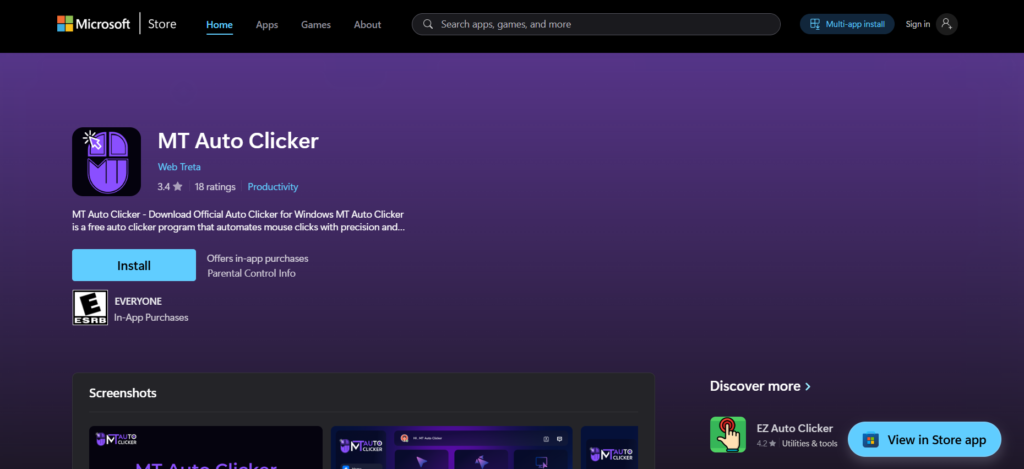
- Download the extension
- Visit the Microsoft Edge Add-ons store.
- Search for “Auto Clicker” and select a trusted option like MT Auto Clicker.
- Install the extension
- Click Add to Edge.
- Confirm permissions.
- Configure settings
- Open the extension from the toolbar.
- Set click intervals (e.g., 1ms to several seconds).
- Define click targets (single or multiple).
- Save presets for recurring tasks.
- Run automation
- Activate the auto clicker when needed.
- Monitor activity through the extension dashboard.
Comparison of Auto Clicker Features
| Feature | MT Auto Clicker | Generic Auto Clicker | Advanced Edge Tools |
|---|---|---|---|
| Precision clicking | 1ms intervals | Limited | Variable |
| Multi-target automation | Yes | No | Yes |
| Scrolling automation | Yes | No | Yes |
| Form filling | Yes | Limited | Yes |
| Screen capture | HD recording & screenshots | No | Yes |
| Ease of setup | Simple presets | Manual | Moderate |
Risks and Limitations
While the Edge clicking tool is powerful, users should be aware of potential risks:
- Security concerns: Malicious auto clickers may capture data. Always install from the official Microsoft Edge store.
- Overuse in gaming: Some platforms may ban accounts for using automation.
- Browser performance: Running multiple auto clickers simultaneously can slow down Edge.
- Accuracy issues: Poorly configured click intervals may cause errors in workflows.
Best Practices for Using Auto Clicker Microsoft Edge
- Download only from trusted sources (Microsoft Edge Add-ons store).
- Use presets for recurring tasks to avoid misclicks.
- Test automation on non-critical workflows before applying to production.
- Limit usage in gaming to avoid account bans.
- Update regularly to benefit from new features and security patches.
Future of Edge Auto Clicker Extensions (2026 and Beyond)
By 2026, auto clicker extensions have evolved into multi-functional productivity suites. They now integrate with:
- AI-driven automation: Predicts user actions and suggests workflows.
- Cloud sync: Save presets across devices with your Microsoft account.
- Advanced analytics: Track automation efficiency and productivity gains.
- Accessibility tools: Enhanced support for users with disabilities.
The Microsoft Edge auto clicker setup is now more intuitive, with drag-and-drop interfaces and customizable dashboards.
Conclusion
The Microsoft Edge Auto Clicker has become an essential tool in 2026 for anyone dealing with repetitive browser tasks. From gamers automating clicks to professionals streamlining workflows, the auto clicker for Microsoft Edge offers precision, speed, and convenience.
By following best practices and using trusted extensions like MT Auto Clicker, users can safely harness the power of automation in Edge. As the technology continues to evolve, expect even more intelligent features, deeper integration with Microsoft services, and enhanced security.