
Chromebooks have become one of the most popular computing devices in recent years, thanks to their affordability, simplicity, and seamless integration with Google’s ecosystem. Powered by Chrome OS, these lightweight laptops are widely used in schools, offices, and homes.
While they excel at everyday tasks like browsing, streaming, and document editing, many users also look for ways to automate repetitive actions. This is where the Chromebook auto clicker comes into play.
An auto clicker is a tool that automates mouse clicks, saving time and effort when performing repetitive tasks. Whether you’re playing browser-based games, testing web applications, or simply tired of clicking the same button repeatedly, an Auto Clicker Chromebook can make life easier.
In 2026, the landscape of Chrome os auto clicker solutions has expanded, offering users multiple ways to set up automation directly on their devices. This article explores the best solutions for an auto clicker for Chromebook, explains how to configure them, and provides practical tips for safe and efficient use.
By the end, you’ll know exactly how to perform a Chromebook auto clicker setup and choose the best auto clicker Chromebook option for your needs.
Table of Contents
Why Use a Chromebook Auto Clicker?
- Efficiency: Automating clicks saves time when performing repetitive tasks, such as refreshing pages or clicking game elements.
- Accessibility: For users with mobility challenges, a Chromebook clicking tool can make navigation easier and reduce physical strain.
- Testing and Development: Developers and testers often use chrome os clicking tools to simulate user interactions during software testing.
- Gaming: Many browser-based games require rapid clicking. An auto clicker chrome os ensures consistent performance without tiring your hands.
Types of Auto Clicker Chromebook Solutions
1. Chrome Extensions
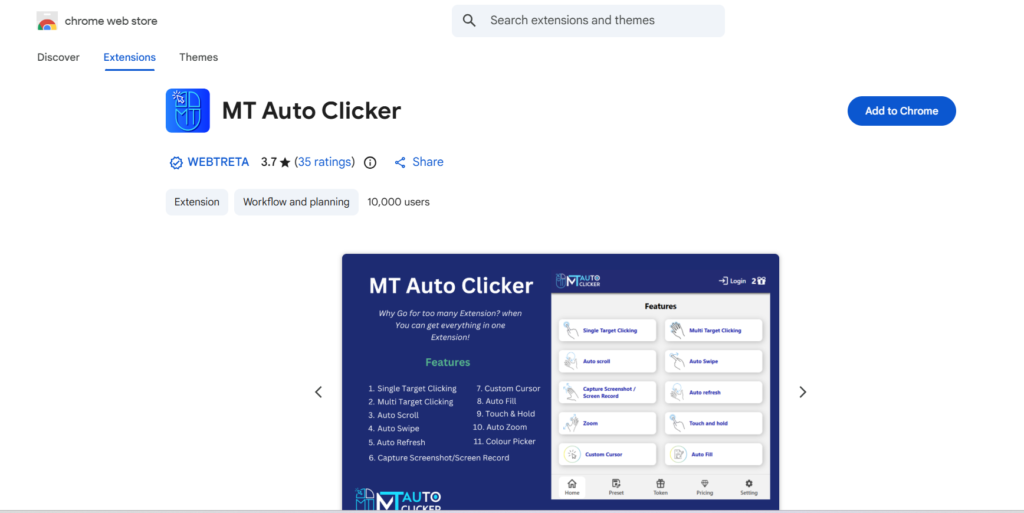
The simplest way to enable auto clicking on a Chromebook is through browser extensions.
- Strengths: Easy to install, lightweight, accessible via Chrome Web Store.
- Weaknesses: Limited to browser-based tasks.
2. Android Apps (via Google Play Store)
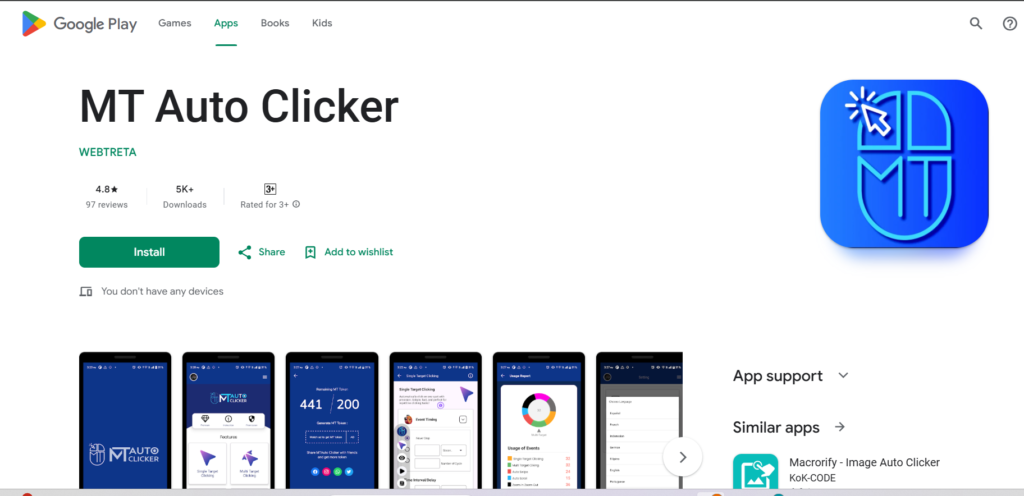
Since modern Chromebooks support Android apps, you can install mobile Auto Clicker app.
- Strengths: More versatile, works across apps and games.
- Weaknesses: May require additional permissions.
3. Built-in Accessibility Tools
Chrome OS includes accessibility features that can mimic auto clicking.
- Strengths: Safe, built-in, no external downloads.
- Weaknesses: Limited functionality compared to dedicated tools.
Best Auto Clicker Chromebook Options in 2026
| Solution | Type | Best For | Pros | Cons |
|---|---|---|---|---|
| Click Assistant Extension | Chrome Extension | Web automation | Easy install, customizable | Browser-only |
| Auto Clicker – Android App | Android App | Games & apps | Works outside browser | Requires Play Store |
| Linux Auto Clicker | Linux App | Developers | Advanced features | Complex setup |
| Chrome OS Accessibility Auto Click | Built-in Tool | General use | Safe, no install | Limited speed |
Chromebook Auto Clicker Setup Guide
Step 1: Decide Your Use Case
- Gaming: Choose Android apps or extensions.
- Testing: Use Auto Clickers for advanced control.
- Accessibility: Enable Chrome OS built-in auto click.
Step 2: Install the Tool
- Chrome Extension:
- Open Chrome Web Store.
- Search “auto clicker.”
- Click “Add to Chrome.”
- Android App:
- Open the Google Play Store on Chromebook.
- Search “Auto Clicker for Chromebook.”
- Install and grant permissions.
- Accessibility Tool:
- Go to Settings → Accessibility.
- Enable “Automatic Clicks.”
Step 3: Configure Settings
- Click Interval: Adjust speed (e.g., 100ms, 500ms).
- Target Area: Choose whether to click anywhere or on specific elements.
- Hotkeys: Assign start/stop shortcuts.
- Profiles: Save different setups for gaming, testing, or productivity.
Step 4: Test and Optimize
- Run the auto clicker for a few minutes.
- Check performance and stability.
- Adjust settings to balance speed and accuracy.
Advanced Chromebook Automation Strategies
- Golden Cookie Detection in Games: Configure extensions to detect and click special game elements instantly.
- Form Automation: Use auto clickers to test form submissions repeatedly.
- Looping Tasks: Set up loops to refresh dashboards or click ads.
- Hybrid Setup: Combine Chrome extensions with Android apps for maximum flexibility.
Risks and Considerations
- Game Fairness: Using Auto Clicker in competitive games may violate rules.
- System Performance: High CPS (clicks per second) can cause lag.
- Security: Only install trusted extensions and apps.
- Updates: Tools may break after Chrome OS updates.
Best Practices for Chromebook Auto Clicker Setup
- Start Slow: Begin with moderate click speeds.
- Monitor Performance: Avoid lag by balancing CPS.
- Use Responsibly: Don’t abuse automation on sensitive sites.
- Stay Updated: Keep extensions and apps up to date.
- Backup Settings: Save configurations for easy recovery.
Future of Chrome OS Auto Clicker Tools
By 2026, Chromebook automation tools will be evolving rapidly. Expect:
- AI-driven auto clickers that adapt to page changes.
- Cloud-synced profiles across devices.
- Enhanced accessibility features are built directly into Chrome OS.
- Smarter Chromebook clicking tools that integrate with productivity apps.
The best auto clicker Chromebook of the future won’t just click—it will intelligently interact with websites and apps, bridging the gap between simple automation and full digital assistants.
Conclusion
The Chromebook auto clicker has become an essential tool in 2026 for gamers, developers, and productivity enthusiasts. Whether you’re looking for a simple auto clicker Chromebook extension, a versatile Android app, or a powerful solution, there’s an option for every need.
Setting up an auto clicker for a Chromebook is straightforward: choose your tool, install it, configure settings, and test for optimal performance. With proper setup, you can streamline repetitive tasks, enhance accessibility, and enjoy smoother workflows.
Ultimately, the best auto clicker Chromebook depends on your goals. For casual users, Chrome extensions or accessibility tools are perfect. For advanced users, Android app solutions unlock deeper automation.
By mastering Chromebook auto clicker setup, you can harness the full potential of chrome os auto clicker technology and make your Chromebook experience more efficient, productive, and enjoyable.
Automation is no longer a luxury—it’s a necessity. And with the right Chromebook clicking tool, you can transform your device into a powerful productivity ally in 2026.