
In the digital age, efficiency is everything. Whether you’re gaming, testing web applications, or automating repetitive tasks, the ability to simulate clicks quickly and accurately can save enormous amounts of time. That’s where the Chrome extension auto clicker comes in.
An Auto Clicker is a tool that automates mouse clicks. Traditionally, these were standalone applications, but in 2026, the most popular and convenient option is the auto clicker Chrome extension. Installed directly into your browser, these extensions allow you to automate clicks on websites, games, and applications without leaving the Chrome environment.
This article provides a detailed installation and configuration guide for the latest Chrome Extension Auto Clicker tools available in 2026. We’ll explore what they are, why they’re useful, and how to install and configure them for optimal performance.
By the end, you’ll know exactly how to set up the best Chrome Extension Auto Clicker for your needs.
Table of Contents
What is a Chrome Extension Auto Clicker?
A Chrome extension auto clicker is a browser add‑on designed to simulate mouse clicks automatically within Google Chrome. Unlike traditional desktop auto clickers, these extensions run inside the browser, making them ideal for web‑based tasks such as:
- Clicking repetitive buttons in online games.
- Automating form submissions for testing.
- Refreshing or interacting with websites at set intervals.
- Streamlining productivity workflows.
Because they’re integrated into Chrome, they’re lightweight, easy to install, and accessible through the auto clicker Chrome Web Store.
Why Use a Chrome Auto Clicker?
- Convenience
- No need to install external software. Everything runs inside Chrome.
- Accessibility
- Extensions are easy to find, install, and update directly from the Chrome Web Store.
- Customization
- Most Chrome clicking extensions allow you to set click speed, intervals, and target areas.
- Cross‑Platform
- Works on any system that supports Chrome—Windows, macOS, and even ChromeOS.
- Safety
- Extensions are sandboxed within the browser, reducing risks compared to third‑party executables.
Types of Browser Auto Clickers
1. Simple Click Simulators
These extensions repeatedly click at a set interval.
- Strengths: Easy to use, minimal setup.
- Weaknesses: Limited customization.
2. Advanced Chrome Clicking Extensions
These allow targeting specific elements on a webpage.
- Strengths: Precision targeting, customizable scripts.
- Weaknesses: Requires more configuration.
3. Script‑Based Auto Clickers
Some extensions let you run JavaScript snippets for automation.
- Strengths: Highly flexible, powerful for developers.
- Weaknesses: Requires coding knowledge.
How to Install Chrome Extension Auto Clicker?
Step 1: Open Chrome Web Store
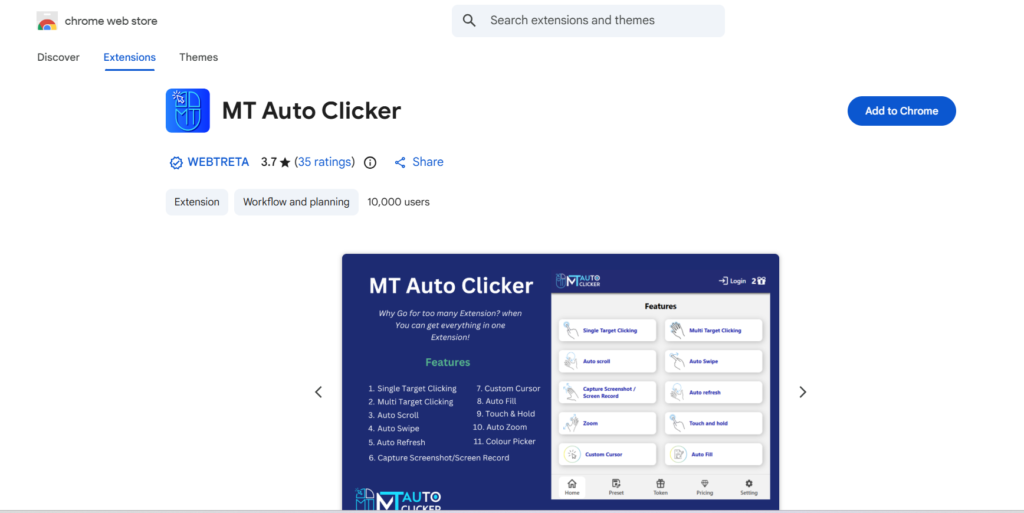
- Navigate to the Auto Clicker Chrome Web Store.
- Search for “auto clicker” or “Chrome Auto Clicker.”
Step 2: Choose the Best Extension
- Look for high ratings and recent updates.
- Ensure compatibility with your version of Chrome.
- Examples include “Auto Clicker – AutoFill” or “Click Assistant.”
Step 3: Add to Chrome
- Click Add to Chrome.
- Confirm installation.
Step 4: Access the Extension
- Click the puzzle icon in Chrome’s toolbar.
- Pin the auto clicker extension for Chrome for easy access.
How to Configure Chrome Auto Clicker?
1. Set Click Interval
- Define how fast the extension should click (e.g., every 100ms).
- Balance speed with stability—too fast may cause lag.
2. Choose Target Area
- Select whether to click anywhere or on a specific button.
- Advanced extensions allow element targeting via CSS selectors.
3. Enable/Disable Hotkeys
- Configure keyboard shortcuts to start/stop auto clicking.
- Common defaults: F6 to start, F7 to stop.
4. Save Profiles
- Many extensions let you save multiple configurations.
- Useful for switching between gaming and productivity tasks.
Best Chrome Extension Auto Clicker in 2026
| Extension | Features | Best For |
|---|---|---|
| Click Assistant | Adjustable speed, element targeting, hotkeys | Web automation |
| Auto Clicker – AutoFill | Form filling + auto clicking | Testing workflows |
| Super Auto Clicker | High CPS, simple interface | Gaming |
| Smart Click Bot | Script support, advanced targeting | Developers |
Advanced Configuration Tips
- Golden Rule: Start with moderate speeds (200–300ms) before experimenting with faster settings.
- Element Targeting: Use developer tools (Inspect Element) to identify buttons for precise clicking.
- Looping: Configure loops for tasks that need repeated execution.
- Safety: Avoid using auto clickers on sensitive sites (banking, government portals).
Common Issues and Fixes
- Extension Not Working
- Ensure it’s enabled in Chrome settings.
- Restart Chrome.
- Clicks Too Slow/Fast
- Adjust interval settings.
- Check system performance.
- Target Not Detected
- Use a correct CSS selector.
- Update extension if outdated.
- Browser Lag
- Reduce CPS.
- Close unnecessary tabs.
Best Practices for Using the Auto Clicker Chrome Extension
- Use Responsibly: Don’t abuse auto clickers on websites that prohibit automation.
- Stay Updated: Always keep up to date with the latest version for security.
- Backup Settings: Save your configurations in case of reinstall.
- Test Safely: Experiment on non‑critical sites before applying to important tasks.
Future of Chrome Auto Clickers (2026 and Beyond)
As web applications grow more complex, Google Chrome auto clicker tools will evolve to include:
- AI‑driven automation that adapts to page changes.
- Integration with productivity suites for workflow automation.
- Enhanced safety features to prevent misuse.
- Cloud‑based profiles for syncing across devices.
The best Chrome auto-clicker extension of the future will not only click but also intelligently interact with websites, bridging the gap between simple automation and full-fledged browser bots.
Conclusion
The Chrome extension auto clicker has become an indispensable tool in 2026 for gamers, developers, and productivity enthusiasts alike. By automating repetitive clicks, these extensions save time, reduce strain, and unlock new possibilities for web interaction.
Installing an auto clicker Chrome extension is straightforward: visit the Chrome Web Store, choose a trusted extension, and configure it to your needs. With proper setup—intervals, hotkeys, and targeting—you can transform tedious tasks into seamless automation.
Whether you’re looking for a browser auto clicker for casual gaming, a Chrome clicking extension for web testing, or the best Chrome auto clicker extension for advanced workflows, the tools available in 2026 offer something for everyone.
Ultimately, automation is about empowerment. By mastering how to install an auto clicker Chrome and configuring it effectively, you can reclaim your time, enhance your productivity, and enjoy a smoother digital experience. The future of web automation is here, and it starts with a click.