

Auto clickers are commonly used for basic automation, such as performing repeated clicks in games or handling simple tasks. However, experienced users often go beyond basic functionality.
They configure automation tools to handle complex workflows, increase efficiency, and minimize manual effort. These advanced auto clicker techniques allow power users to automate repetitive processes while maintaining control and flexibility.
In this article, we explore the most effective advanced auto clicker techniques that can help power users optimize performance, manage complex tasks, and maximize automation potential.
Table of Contents
Understanding the Needs of Power Users
Power users typically require more than simple clicking automation. They need precision, flexibility, and control. Instead of just automating a single click location, they often automate multiple steps within a workflow.
The foundation of many advanced auto clicker techniques lies in customizing the software settings to match specific tasks. This includes defining click patterns, setting dynamic intervals, and integrating multiple actions into a single automated routine. When configured properly, automation tools can handle long and repetitive sessions without constant supervision.
What Are Advanced Auto Clicker Techniques for Power Users?
1. Multi-Point Clicking Automation
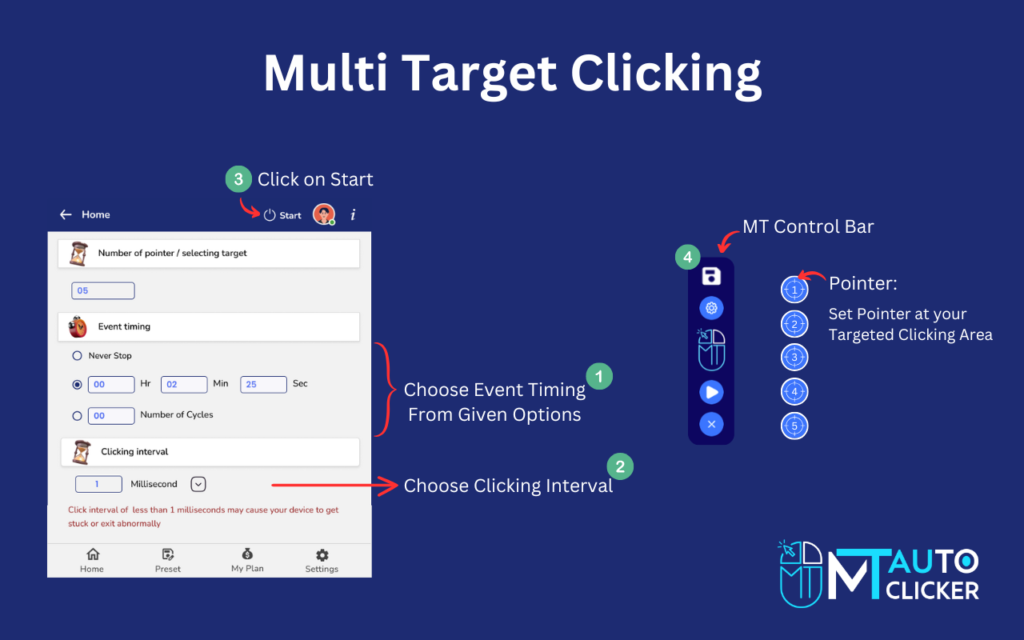
One of the most important advanced auto clicker techniques is multi-point clicking. Instead of repeatedly clicking a single location, users can configure multiple click points across the screen.
This technique is particularly useful in scenarios such as:
- Click-based or incremental games
- Data entry workflows
- Interface testing
- Repetitive application tasks
By setting multiple click coordinates, power users can automate entire sequences of actions. This reduces the need for manual intervention and significantly speeds up processes.
2. Custom Click Intervals
Another key aspect of advanced auto clicker techniques is controlling the timing between clicks. Beginners often use fixed intervals, but power users prefer dynamic timing strategies.
Custom intervals allow automation to behave more naturally and efficiently. For example, instead of clicking every 0.1 seconds, users can vary the intervals to match system responses or application behavior.
Benefits of custom intervals include:
- Reduced risk of detection in certain environments
- Better system performance
- More accurate task execution
Fine-tuning click timing is one of the most effective ways to improve automation results.
3. Macro Recording and Playback
Macro recording is another powerful method used in advanced auto clicker techniques. Instead of manually configuring each step, users record their actions once and replay them automatically.
This technique captures mouse movements, clicks, and sometimes keyboard inputs. Once recorded, the macro can run repeatedly without user intervention.
Macro automation is useful for tasks such as:
- Repetitive software testing
- Routine office tasks
- Browser interactions
- Game resource collection
Using macro playback significantly expands what an auto clicker can accomplish.
4. Loop-Based Automation
Loop automation is a fundamental part of many advanced auto clicker techniques. Instead of running a click sequence only once, loops allow tasks to repeat continuously.
Power users typically configure loops with specific limits or conditions. For example:
- Run a click sequence 500 times
- Continue until a specific task completes
- Pause between cycles to reduce system load
Looping automation makes long-running tasks manageable and efficient.
5. Hotkeys for Fast Control

Control and flexibility are important for any automation tool. That is why hotkeys are a key part of many advanced auto clicker techniques. Hotkeys allow users to start, pause, or stop automation instantly. Instead of opening the software interface, a simple keyboard shortcut can control the entire process.
Common hotkey functions include:
- Start automation
- Pause or resume tasks
- Emergency stop commands
For power users running long automation sessions, hotkeys provide essential control and safety.
6. Conditional Automation
One of the most sophisticated advanced auto clicker techniques involves conditional triggers. Instead of blindly running automation, users configure conditions that determine when actions should occur.
Examples of conditional automation include:
- Triggering clicks when a certain screen element appears
- Stopping automation when a specific action completes
- Changing click patterns based on system feedback
Conditional logic allows automation to adapt to different situations, making it much more powerful than simple repetitive clicking.
7. Combining Keyboard and Mouse Automation
Some tasks require both mouse clicks and keyboard input. Combining these actions is another important part of advanced auto clicker techniques.
Power users often automate workflows that involve:
- Opening menus
- Entering commands
- Confirming actions with keyboard shortcuts
By integrating mouse and keyboard automation, users can simulate complete workflows without manual interaction.
8. Performance Optimization
Running automation continuously can strain system resources. Therefore, performance optimization is an important element of advanced auto clicker techniques.
Power users typically monitor:
- CPU usage
- Memory consumption
- Application responsiveness
Reducing unnecessary clicks and adjusting intervals can help maintain stable performance during long sessions. Another helpful strategy is scheduling automation during periods when the system is not being actively used.
9. Safety and Responsible Usage
Even with sophisticated tools, responsible use remains important. Many advanced auto clicker techniques emphasize maintaining safe and ethical automation practices.
Users should always:
- Follow platform rules and guidelines
- Avoid automation where it is restricted
- Use trusted software sources
Responsible use ensures that automation remains a helpful productivity tool rather than causing unintended issues.
10. Testing and Fine-Tuning Automation
Testing is essential when implementing advanced auto clicker techniques. Even small configuration changes can affect how automation behaves.
Power users often run short test sessions to verify:
- Click accuracy
- Timing effectiveness
- System performance
After testing, adjustments can be made to improve reliability and efficiency. Regular testing ensures that automation continues to work smoothly as applications or systems change.
Future Trends in Auto Clicker Technology
Automation tools are evolving rapidly, and new features are constantly being introduced. The future of advanced auto clicker techniques may include:
- AI-assisted automation
- Smart click detection
- Adaptive timing algorithms
- Cross-platform synchronization
These developments could make automation tools even more powerful and easier to configure. Power users who stay up to date with these trends will be able to take advantage of new features and capabilities as they emerge.
Final Thoughts
Auto clickers are far more capable than many people realize. While beginners may use them for simple repetitive tasks, experienced users apply advanced auto clicker techniques to automate complex workflows and improve efficiency.
By combining features such as multi-point clicking, custom intervals, macro recording, looping, and conditional triggers, power users can transform basic automation tools into powerful productivity systems.
The key to success is careful configuration, responsible usage, and ongoing optimization. With the right approach, these advanced auto clicker techniques can dramatically reduce manual work while maintaining precision and control.