

Auto Clickers are powerful tools that automate repetitive clicking tasks in gaming, testing, and daily work. While they are generally easy to use, users often encounter technical issues that can reduce efficiency or even prevent the tool from working.
Understanding these problems and knowing how to fix them can save time and improve your overall experience. In this article, we will explore the most common problems users face and provide practical solutions.
Table of Contents
Introduction to Auto Clicker Issues
Despite their simplicity, users frequently encounter Auto Clicker Issues due to incorrect settings, system limitations, or software conflicts. These problems can range from minor glitches to complete tool failure.
Let’s break down the most common problems and how to solve them step by step.
Common Auto Clicker Issues and How to Fix Them
1. Auto Clicker Not Working
One of the most common Auto Clicker Issues is when the tool simply does not work after installation.
Causes:
- Software is not running as an administrator.
- Compatibility issues with the OS
- Blocked by antivirus
Solutions:
- Run the auto clicker as administrator.
- Reinstall the software
- Add it to antivirus exceptions.
2. Clicks Not Registering
Sometimes the auto clicker runs, but the clicks are not detected.
Causes:
- Incorrect click position
- Background window inactive
- Application restrictions
Solutions:
- Set the correct cursor position.
- Keep the target window active.
- Use fixed position mode.
This is one of the most frustrating Auto Clicker Issues, especially during important tasks.
3. Auto Clicker Stops Suddenly
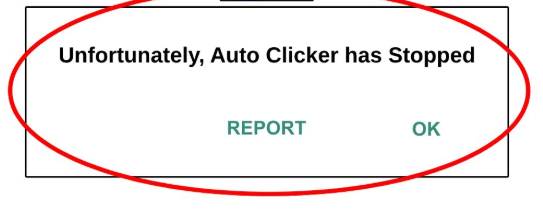
Another common problem is when the tool stops working unexpectedly.
Causes:
- Hotkey conflicts
- System interruptions
- Software crashes
Solutions:
- Change the hotkey settings.
- Close unnecessary applications
- Restart the auto clicker.
4. Too Fast or Too Slow Clicking

Incorrect speed settings can lead to performance problems.
Causes:
- Very low interval (1–5 ms)
- High interval causing slow clicks
Solutions:
- Set interval between 50–200 ms
- Test different speeds before use.
Speed-related Auto Clicker Issues can also affect system stability.
5. High CPU Usage or System Lag

Auto clickers can sometimes consume excessive system resources.
Causes:
- Extremely fast click intervals
- Running multiple programs
- Low system configuration
Solutions:
- Increase click interval
- Close background apps
- Upgrade system resources if needed
6. Hotkey Not Working

Hotkeys are essential for starting and stopping the auto clicker, but sometimes they fail.
Causes:
- Key conflict with other software
- Incorrect configuration
Solutions:
- Assign a different hotkey.
- Check keyboard settings
This is a very common Auto Clicker Issues scenario for beginners.
7. Auto Clicker Detected in Games
Some games detect automation tools and restrict their usage.
Causes:
- Anti-cheat systems
- Continuous high-speed clicking
Solutions:
- Avoid using auto clickers in competitive games.
- Use moderate speeds
- Check game policies
Game-related Auto Clicker Issues can lead to account bans.
8. Software Crashing or Freezing
Auto clicker crashes are another issue users face.
Causes:
- Outdated software
- System incompatibility
- Overloaded memory
Solutions:
- Update the software
- Restart your PC
- Use lightweight tools like MT Auto Clicker
9. Antivirus Blocking Auto Clicker

Some antivirus programs mistakenly classify auto clickers as threats.
Causes:
- False positive detection
- Unknown publisher
Solutions:
- Add an exception in antivirus.
- Download from trusted sources only.
Security-related Auto Clicker Issues should be handled carefully.
10. Wrong Click Location

Clicks happening at the wrong place can ruin automation tasks.
Causes:
- Cursor movement
- Incorrect coordinates
Solutions:
- Use fixed position mode.
- Lock cursor location
- Avoid moving the mouse during operation.
Tips to Avoid Auto Clicker Issues
To minimize Auto Clicker Issues, follow these best practices:
- Always test settings before use.
- Avoid extremely fast click intervals.
- Use trusted software only.
- Keep your system updated.
- Monitor performance regularly
Advanced Troubleshooting
If problems persist:
- Reinstall Software: Remove and reinstall the auto clicker.
- Check System Compatibility: Ensure your OS supports the tool.
- Try Alternative Tools: Switch to another reliable auto clicker if needed.
When to Avoid Using Auto Clickers?
Avoid using auto clickers in:
- Competitive multiplayer games
- Banking or sensitive websites
- Complex workflows requiring human input
This helps prevent serious Auto Clicker Issues and risks.
Conclusion
Auto clickers are simple yet powerful tools, but they are not free from problems. From clicks not registering to system lag and crashes, users may encounter various challenges while using them.
By understanding these Auto Clicker Issues and applying the appropriate solutions, you can ensure smooth, efficient automation. Always use proper settings, trusted software, and follow best practices to avoid unnecessary complications.
With the right approach, you can eliminate most problems and make the most of your auto clicker experience.