

Auto Clicker have become essential tools for both gamers and professionals who handle repetitive clicking tasks. Whether you are grinding resources in a game or automating routine actions at work, using the right settings can make a huge difference in speed, efficiency, and overall performance.
In this guide, we will explore the fastest auto clicker settings, how to optimize them for different use cases, and tips to achieve maximum performance without causing system issues.
Table of Contents
What is an Auto Clicker?
An auto clicker is a software tool that simulates mouse clicks. Instead of manually clicking, the tool performs clicks according to predefined settings, such as speed, interval, and position.
Popular tools like MT Auto Clicker allow users to customize click speed and behavior, making them ideal for gaming and productivity tasks.
Why Speed Matters in Fastest Auto Clicker Settings?
The speed of your auto clicker directly impacts:
- Game performance (faster attacks, quicker farming)
- Task completion time (automation efficiency)
- System performance (too fast may cause lag or crashes)
Finding the right balance between speed and stability is key.
Understanding Key Auto Clicker Settings
Before optimizing for speed, it’s important to understand the core settings.
1. Click Interval
This defines how quickly the auto clicker performs clicks.
- Measured in milliseconds (ms)
- Lower value = faster clicking
Example:
- 1000 ms = 1 click per second
- 100 ms = 10 clicks per second
2. Click Type
- Left click (most common)
- Right click
- Double click
For speed-focused tasks, left click is typically used.
3. Repeat Mode
- Fixed number of clicks
- Infinite clicking
Infinite mode is best for continuous tasks.
4. Cursor Position
- Current location
- Fixed position
Fixed position ensures accuracy for repeated actions.
5. Hotkeys
Hotkeys allow you to start/stop the auto clicker instantly (e.g., F6, F8).
Fastest Auto Clicker Settings for Gaming
Gaming requires both high speed and stability. Here are the best configurations:
🔹 Recommended Settings
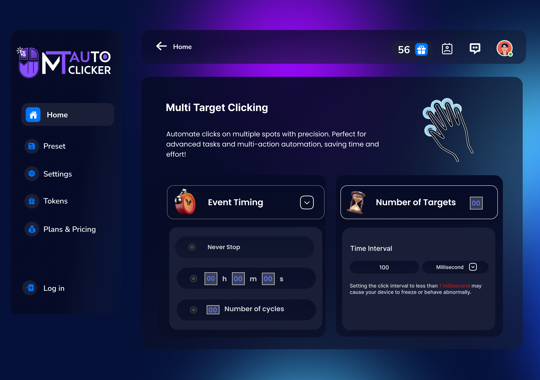
- Click Interval: 10 ms – 50 ms
- Click Type: Left Click
- Repeat Mode: Infinite
- Cursor Position: Fixed (on target)
🔹 Why These Settings Work
- Extremely fast clicking increases attack speed.
- Helps in idle and clicker games
- Improves farming efficiency
🔹 Use Case Example
In clicker or idle RPG games:
- Faster clicks = faster damage
- Faster progression
- Reduced manual effort
⚠️ Important:
Some games detect automation tools. Always check game rules before using auto clickers.
Fastest Auto Clicker Settings for Work
For work tasks, stability and accuracy are more important than extreme speed.
🔹 Recommended Settings
- Click Interval: 100 ms – 500 ms
- Click Type: Left Click
- Repeat Mode: Based on task
- Cursor Position: Fixed or dynamic
🔹 Why These Settings Work
- Prevents system overload
- Ensures accurate clicks
- Avoids errors in forms or dashboards
🔹 Use Case Example
For tasks like:
- Form submissions
- Data entry clicking
- UI testing
Moderate speed ensures reliable automation.
Ultra-Fastest Auto Clicker Settings (Advanced Users)
If you want maximum speed, you can push limits:
- Click Interval: 1 ms – 10 ms.
⚠️ Risks of Ultra-Fast Speed:
- System lag or freezing
- Application crashes
- Missed clicks
- Detection in games
These settings should be used only for testing or in controlled environments.
Best Auto Clicker Tools for Speed Optimization
Here are some popular tools:
1. MT Auto Clicker
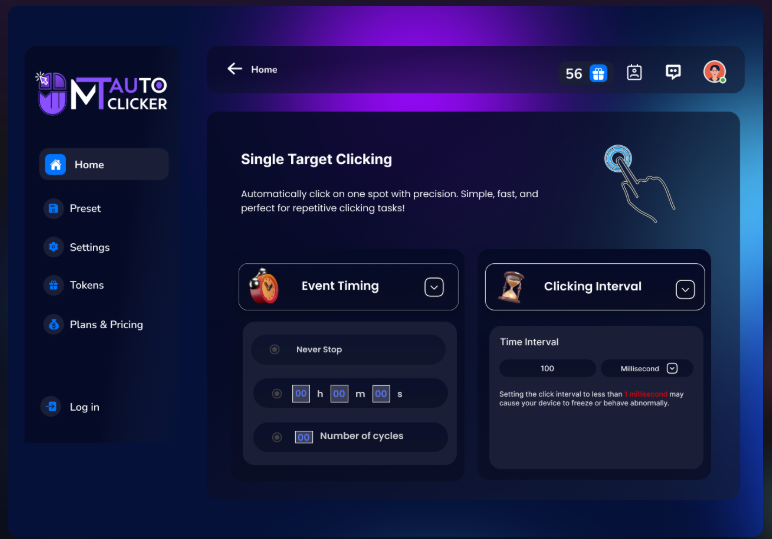
- Highly customizable
- Supports very low intervals
- Easy to use
2. GS Auto Clicker
- Simple interface
- Good for beginners
3. OP Auto Clicker
- Advanced features
- Multi-point clicking
Tips to Achieve Maximum Speed Safely
- Start Slow: Begin with 100 ms and gradually decrease.
- Monitor System Performance: If your system lags, increase the interval.
- Use Fixed Positions: Avoid cursor movement issues by locking the click position.
- Close Background Apps: Free up system resources for smoother performance.
- Test Before Full Use: Always test settings on a safe screen before applying.
Common Mistakes to Avoid
❌ Using Extremely Low Intervals Immediately
Can crash apps or freeze your system.
❌ Ignoring Game Rules
May result in account bans.
❌ Not Testing Settings
Leads to wrong clicks or errors.
❌ Using Untrusted Software
It can expose your system to malware.
Gaming vs Work Settings Comparison
| Feature | Gaming | Work |
| Speed | Very Fast (10–50 ms) | Moderate (100–500 ms) |
| Accuracy | Medium | High |
| Risk | High (ban possible) | Low |
| Usage | Continuous | Controlled |
Advanced Optimization Techniques
- Randomized Click Intervals: Some tools allow random delays to mimic human behavior.
- Multi-Click Setup: Click multiple points automatically.
- Script-Based Automation: Combine clicks with keyboard inputs.
Safety and Ethical Considerations
While auto clickers are powerful, responsible usage is important:
- Do not use unfairly in competitive gaming.
- Avoid sensitive websites (banking, personal accounts)
- Respect platform policies
- Use automation for productivity, not misuse.
Future of Auto Clicker Optimization
With advancements in automation, auto clickers are evolving into smarter tools that include:
- AI-based clicking patterns
- Smart detection of UI elements
- Integration with full automation systems
The future will likely bring more intelligent and adaptive automation tools.
Conclusion
Choosing the fastest auto clicker settings depends on your purpose. For gaming, ultra-fast speeds like 10–50 ms can boost performance, while for work, moderate speeds ensure accuracy and stability.
Tools like MT Auto Clicker make it easy to customize settings according to your needs. However, always remember that faster is not always better—balance speed with system performance and safety.
By understanding the right configurations and following best practices, you can maximize efficiency, save time, and enhance your overall experience with auto clickers.