
Using an Auto Clicker in a web browser like Google Chrome can significantly improve productivity, especially for repetitive tasks such as gaming, data entry, testing web applications, or performing routine clicks on websites. An auto clicker is a tool that automatically simulates mouse clicks at predefined intervals, saving time and reducing manual effort.
In this guide, you will learn what a Chrome auto clicker is, how it works, how to install it, and how to use it safely and effectively.
Table of Contents
What is a Chrome Auto Clicker?
A Chrome auto clicker is usually a browser extension or an external tool that automates mouse clicks in the Chrome browser. Instead of manually clicking repeatedly, the tool performs clicks automatically based on:
- Time interval (e.g., every 1 second or 100 milliseconds)
- Click position (specific location or cursor position)
- Click type (single click, double click, right click)
These tools are widely used for automation tasks, but they must be used carefully to avoid violating website rules or terms of service.
Why Use an Auto Clicker in Chrome?
There are several practical reasons people use auto clickers:
1. Gaming Efficiency
Many browser-based games require repetitive clicking. Auto clickers help reduce strain and improve performance.
2. Productivity Tasks
Tasks such as refreshing pages, submitting forms, or performing repetitive UI steps can be automated.
3. Software Testing
Developers use auto clickers to simulate user interactions during testing.
4. Reducing Physical Strain
Continuous clicking can cause finger fatigue or repetitive strain injury. Auto clickers reduce this problem.
Step-by-Step Guide to Use Google Chrome Auto Clicker
Step 1: Open Google Chrome
First, launch Google Chrome on your computer. Make sure your browser is up to date for better compatibility with extensions.
To update Chrome:
- Click the three dots in the top-right corner.
- Go to Help > About Google Chrome.
- Chrome will automatically check for updates.
Step 2: Go to Chrome Web Store
Open the Chrome Web Store by searching “Chrome Web Store” in Google or by directly navigating to it. In the search bar, type: Chrome Auto Clicker. You will extensions like: MT Auto Clicker.
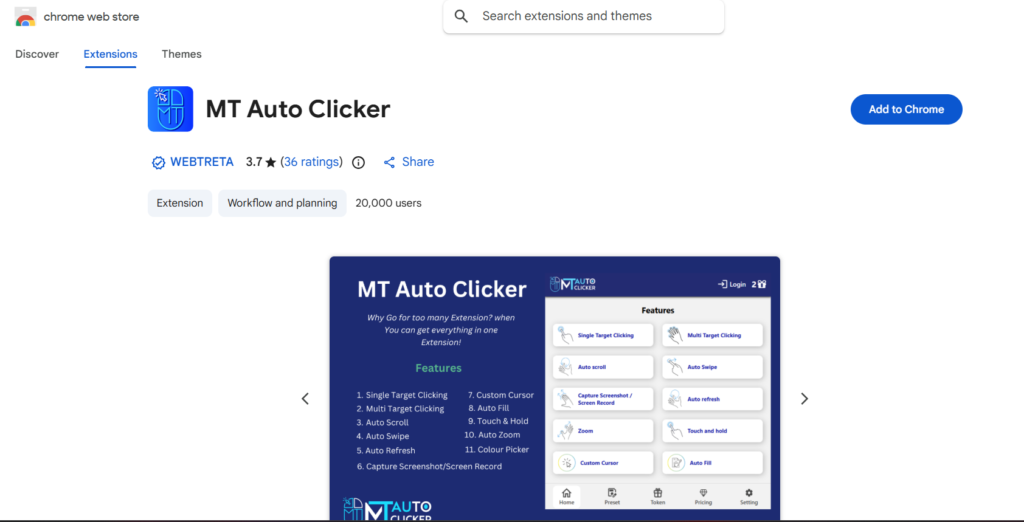
Step 3: Install an Auto Clicker Extension
Once you find a suitable extension:
- Click on the extension.
- Select Add to Chrome
- A pop-up will appear asking for permissions.
- Click Add Extension
After installation, the extension icon will appear in the Chrome toolbar (top-right corner).
Step 4: Open the Auto Clicker Tool
Click the extension icon to open the Auto Clicker Settings panel.
Most auto clickers include the following options:
- Click interval (milliseconds or seconds)
- Number of clicks (infinite or fixed)
- Click type (left, right, double click)
- Start/Stop hotkey (like F6 or F8)
- Cursor position mode
Step 5: Configure Click Settings
Before starting, set your preferences carefully:
Example Settings:
- Click interval: 1000 ms (1 second)
- Click type: Left click
- Repeat: Infinite or 100 clicks
- Mode: Cursor position
If you want faster clicking, reduce the interval (e.g., 100–200 ms), but be careful, as too fast clicking may crash or freeze some pages.
Step 6: Select Click Position
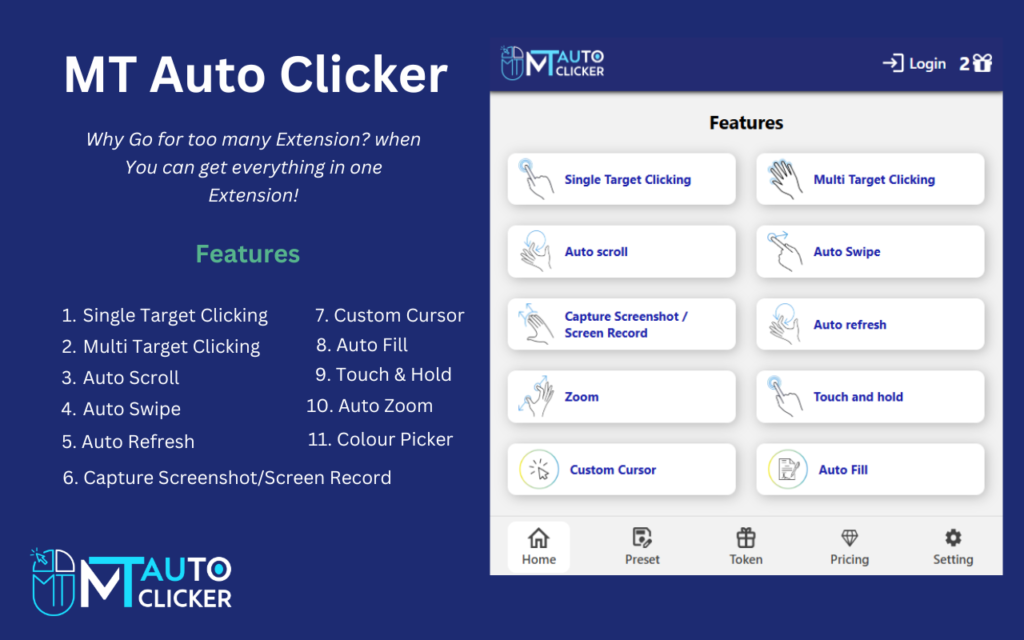
Most Chrome auto clickers allow you to choose where the clicking happens:
Options include:
- Current cursor location
- Fixed position on the screen
- Multiple click points (advanced tools)
To set a position:
- Enable “Pick location” mode.
- Move your cursor to the target button.
- Confirm selection
Step 7: Start the Auto Clicker
Once everything is set:
- Press the assigned hotkey (e.g., F6 or Start button)
- The auto clicker will begin clicking automatically.
You will notice repeated actions happening without manual input. To stop it, press the same hotkey again or click the stop button.
Step 8: Test on a Safe Website
Before using it on important websites, always test on a safe page:
- A blank webpage
- A demo click test site
- A game tutorial page
This helps ensure your settings are correct and prevents unwanted actions.
Step 9: Adjust Speed and Performance
If the auto clicker is too slow or too fast:
- Increase the interval for stability.
- Decrease the interval for speed.
- Avoid extremely low values (<50 ms) unless required.
Also, close unnecessary tabs to improve performance.
Step 10: Use Auto Clicker Safely
While auto clickers are powerful, misuse can lead to problems.
Safety Tips:
- Do not use on banking or sensitive websites.
- Avoid violating game rules (can lead to bans)
- Do not overload pages with excessive clicks.
- Always read extension permissions carefully.
Responsible use helps keep your browser and accounts safe.
Common Problems and Solutions
1. Extension Not Working
- Refresh Chrome
- Re-enable the extension
- Check permissions
2. Clicks Not Registering
- Ensure the correct tab is active.
- Check click position settings.
3. Browser Freezing
- Increase click interval
- Reduce the number of active clicks.
4. Hotkey Not Responding
- Change the shortcut key in settings.
- Check keyboard conflicts with other apps.
Best Practices for Beginners
If you are new to auto clickers:
- Start with slow click intervals.
- Use simple settings first.
- Avoid advanced multi-point clicking initially.
- Test before using on real tasks
Once you gain experience, you can explore advanced features such as scripting and automated sequences.
Advantages of Using Chrome Auto Clicker
- Saves time on repetitive tasks
- Reduces manual effort
- Increases productivity
- Helps in testing and automation
- Easy to install and use
Conclusion
Using an auto clicker in Google Chrome is a simple yet powerful way to automate repetitive clicking tasks. Whether you are a gamer, developer, or everyday user, it can save time and effort when used correctly.
However, it is important to use it responsibly and avoid overusing it on sensitive platforms. By following the steps in this guide—installing the extension, configuring settings, selecting click positions, and testing carefully—you can efficiently use a Chrome auto clicker without issues.
With the right setup, automation becomes not only easy but also highly productive.