
Automation has become a cornerstone of modern computing. From gaming to productivity, users are constantly looking for ways to reduce repetitive tasks and improve efficiency.
On macOS, one of the most popular solutions is the Mac auto clicker. These tools simulate mouse clicks automatically, saving time and effort while offering precision and consistency.
In 2026, the ecosystem of auto clicker Mac applications has matured significantly. Whether you’re a gamer farming resources, a developer testing interfaces, or a professional streamlining workflows, a macOS auto clicker can be a game‑changer.
This guide explores the best tools, installation steps, and advanced configurations to help you harness the full potential of automation on your Mac.
Table of Contents
What is a Mac Auto Clicker?
A Mac auto clicker is a software application designed to automate mouse clicks on macOS. Instead of manually clicking hundreds of times, you can configure the tool to perform clicks at specific intervals, speeds, or locations.
Key Benefits:
- Efficiency: Automates repetitive tasks.
- Precision: Ensures consistent timing and accuracy.
- Accessibility: Assists users with mobility challenges.
- Versatility: Useful for gaming, testing, and productivity.
Why Use an Auto Clicker Mac?
- Gaming Automation: Many macOS games require rapid clicking—idle clickers, RPGs, or farming simulators. A Mac clicking software ensures consistent performance without tiring your fingers.
- Testing and Development: Developers often use Apple Auto Clicker tools to simulate user interactions during app testing.
- Productivity: Automating repetitive tasks, such as refreshing dashboards or navigating menus, saves valuable time.
- Accessibility Support: For users with mobility challenges, an OS X auto clicker can automate repetitive actions, making devices easier to use.
Types of macOS Auto Clicker Tools
1. Simple Tap Simulators
- Strengths: Easy to use, minimal setup.
- Weaknesses: Limited customization.
2. Advanced Auto Clicker Apps
- Strengths: Precision targeting, customizable workflows.
- Weaknesses: Requires more configuration.
3. Accessibility‑Based Auto Clickers
- Strengths: Safe, built into macOS accessibility settings.
- Weaknesses: Limited speed and features.
4. Script‑Based Auto Clickers
- Strengths: Highly flexible, powerful for developers.
- Weaknesses: Requires coding knowledge.
Best Auto Clicker for Mac in 2026
| App | Features | Best For | Pros | Cons |
|---|---|---|---|---|
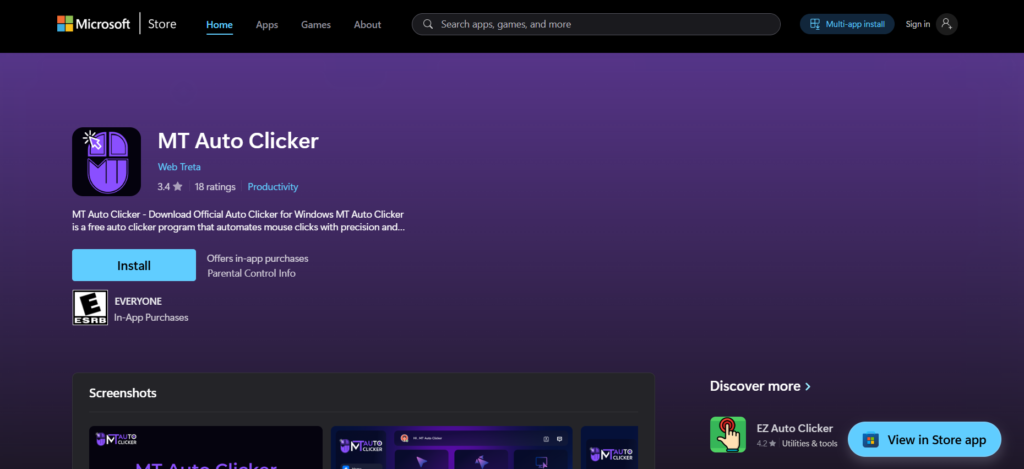
| MT Auto Clicker | Interval clicking, hotkey support | Gaming | Easy setup, customizable | Paid license |
| Mouse Clicker | Multi‑point clicking, recording | Productivity | Lightweight, simple | Limited advanced features |
| Automator + AppleScript | Script‑based automation | Developers | Powerful scripting | Steeper learning curve |
| Mac Accessibility Auto Clicker | Built‑in macOS accessibility | General use | Safe, no install | Limited speed |
Auto Clicker Mac Free Download Options
Many users search for a free auto clicker Mac free download to avoid paid licenses. While free tools exist, they often come with limitations.
- Free Options: iMouseClicker, open‑source projects.
- Paid Options: MurGaa Auto Clicker offers advanced features and support.
- Recommendation: Start with free tools, upgrade if you need advanced automation.
How to Install Auto Clicker Mac
Step 1: Download the App
- Visit the official website or Mac App Store.
- Choose between free and paid versions.
Step 2: Install the Software
- Drag the app into the Applications folder.
- Grant necessary permissions (Accessibility, Input Monitoring).
Step 3: Configure Settings
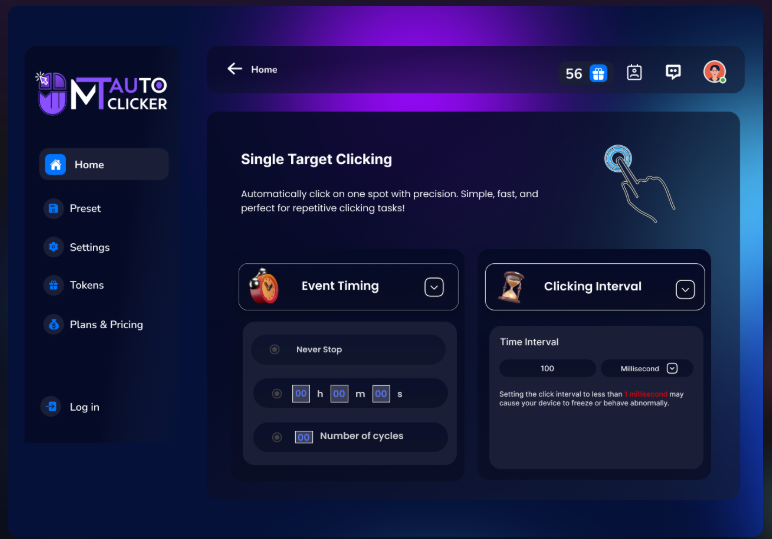
- Click Interval: Adjust speed (e.g., 100ms, 500ms).
- Target Area: Choose where clicks should occur.
- Hotkeys: Assign start/stop shortcuts.
- Profiles: Save different setups for gaming, testing, or productivity.
Step 4: Test the Setup
- Run the auto clicker in a safe environment.
- Adjust settings until performance is optimal.
Advanced Configuration Tips
- Multi‑Point Clicking: Configure apps to tap multiple areas simultaneously for complex games.
- Recording & Playback: Save sequences for tasks like form submissions or repetitive workflows.
- Looping Tasks: Set up loops for tasks like refreshing dashboards or farming resources.
- Custom Scripts: Use Automator or AppleScript for advanced automation workflows.
Common Issues and Fixes
- App Not Working
- Ensure accessibility permissions are granted.
- Restart the app.
- Clicks Too Slow/Fast
- Adjust interval settings.
- Check device performance.
- Target Not Detected
- Recalibrate the target area.
- Update the app if it’s outdated.
- Battery Drain
- Reduce CPS.
- Use power‑saving mode.
Best Practices for Using Auto Clicker Mac
- Start Slow: Begin with moderate click speeds.
- Monitor Performance: Avoid lag by balancing CPS.
- Use Responsibly: Don’t abuse auto clickers in competitive games.
- Stay Updated: Keep apps up to date for security.
- Backup Settings: Save configurations for easy recovery.
Future of macOS Auto Clicker Apps (2026 and Beyond)
By 2026, Mac auto clicker tools will be evolving rapidly. Expect:
- AI‑driven auto clickers that adapt to app changes.
- Cloud‑synced profiles across devices.
- Enhanced accessibility features are built directly into macOS.
- Smarter Apple auto clicker tools that integrate with productivity suites.
The best auto clicker for Mac of the future won’t just click—it will intelligently interact with apps, bridging the gap between simple automation and full digital assistants.
Conclusion
The Mac auto clicker has become an essential tool in 2026 for gamers, developers, and productivity enthusiasts. Whether you’re looking for a simple auto clicker Mac app, a versatile macOS auto clicker, or a powerful scripting solution, there’s an option for every need.
Setting up an auto clicker for Mac is straightforward: choose your app, install it, configure settings, and test for optimal performance. With proper setup, you can streamline repetitive tasks, enhance accessibility, and enjoy smoother workflows.
Ultimately, the best auto clicker for Mac depends on your goals. For casual users, simple tap simulators are perfect. For advanced users, apps like MurGaa or Automator unlock deeper automation. And with the auto clicker Mac free download options, anyone can enjoy automation safely.
Automation is no longer a luxury—it’s a necessity. By mastering how to install an auto clicker on a Mac, you can harness the full potential of your Mac and make your computing experience more efficient, productive, and enjoyable in 2026.